About
Note: this tool is discontinued. I since moved away from Apple. I’m currently working on a similar cross-platform tool (link to the Github page) but it’s not as stable or feature complete. When it does reach the same level, I’ll probably resume updating this page. In the meantime, I’m closing comments and leaving things as they are for reference.
 This tool is a little image viewer I developed as a learning experience for Cocoa / MacOSX programming. As I learned more, I added functionalities, such as playing animated gifs, customizing NSOutlineView, etc. and I decided to make it available. Especially since there is so few documentation on how to play an animated gif inside an IKImageView.
This application only works on Lion, and I don’t plan on making it work on 10.6 or less. The source code is included however, so if you want to take the task of porting ImageViewer to 10.6 or less, help yourself ! I’ll be pleased to answer any question you might have during the process :)
And a little note about the “Donate” button : if someone ever download this little software and find it usefull, well, you can drop a comment, and if you’re really happy with it, you can even click the button. That would make ME happy :) But it’s a donation, not a paiement, so if you want a feature, don’t make a donation hopping that I will feel indebted and implement it. I prefer to be honest and warn you beforehand :)
Enough blablah, here is what it looks like :
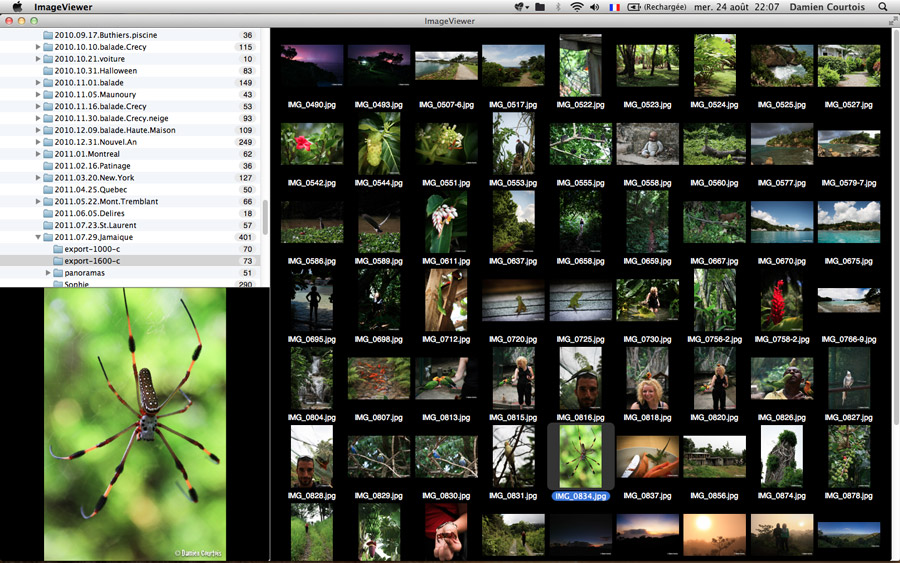
The upper-left part is the directory browser. It allows you to browse your user directory, and the mounted volumes. You can optionally (through the preference panel) add the root of your Mac system, if you want to browse your entire system. It also displays the number of images of each directory, and this number is automatically updated when the content of the directory changes, even if the change is made by another application, such as the Finder.

The right part is the image browser. It displays all the images contained in the currently selected directory. You can select images, cut, copy, paste them, drag and drop them on another directory, you can select everything, select none, delete selection. You can also customize the background, the size of the thumbnails, if you want to see the image titles or not, the space between each thumbnails.
The bottom-left part is the image view. It displays a bigger view of the first selected image, and it’s provides fullscreen capability.
Preferences
The preference panel can be shown by pressing “cmd+,” or using the “ImageViewer > Preferences” menu. It allows customizing a few apsects of the ImageViewer. Also, each preference is saved and restored between sessions. You can reset the preferences to their defaults by clicking “Reset to default”.
Here are the available preferences :
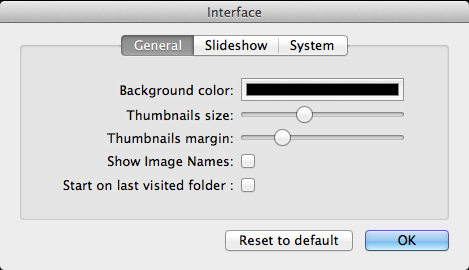
- Background color: the background color of the image browser and the image view. Also apply to the background color in fullscreen
- Thumnails size: the size of the thumbnails in the image browser
- Thumbnails margin: the space between thumbnails in the image browser
- Show Image Names: show the names of the images under their thumnails
- Start on last visited folder: as the name says, if checked, it will start in the last visited folder :)
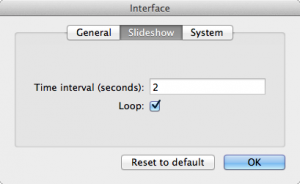 Time interval (seconds): the interval in seconds between 2 slides (you can use dot or coma notation for less than a second interval)
- Loop: if checked, when it reaches the last image, it goes back to the first again.
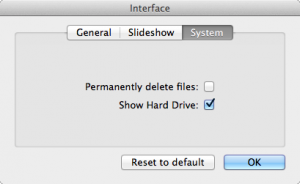 Permanently delete files: if unchecked, use the recycle bin (you can manually restore deleted files in cas you made a mistake) and if checked, the files will be deleted with no possibility of un-doing it.
- Show Hard Drive: if this is checked, you will be able to browse your entire hard drive. Else, only the mounted volumes and your user folder will be browsable.
Shortcuts
- Toggle fullscreen: enter, double click or middle click (must at least be one image selected, or be in fullscreen)
- Start / Stop slideshow: space or p. When starting a slideshow, it automatically goes to fullscreen if it’s not already.
- Delete selected file(s): cmd + back or the menu. Works in the image browser for all the selected images, and also in fullscreen, in which case it deletes the currently displayed image and advance to the next one.
- Cut selected file(s): cmd + x or the menu. Only works in the image browser.
- Copy selected file(s): cmd + c or the menu. Only works in the image browser.
- Paste file(s): cmd + v or the menu. Only works in the image browser. Paste the previously cut or copied file(s) to the current directory.
- Show preferences: cmd + , or the menu.
Changelog
ImageViewer version 1.0 (sources + binary)
- Bugfix: hopefully completely fix all the cases of the file / folder synchronisation feature ! It should also fix a crash that was happening when mounting / unmounting a new device.
ImageViewer version 0.9 (sources + binary)
- Feature: New option to start the ImageViewer in the last visited directory.
- Feature: Now the directory view is synchronized, in the same way as the images ! Means that if a folder is added, renamed or removed in the Finder, the ImageViewer will detect it and update itself.
- Bugfix: The file system event listener was not detecting a few events correctly.
ImageViewer version 0.8 (sources + binary)
- Feature: The number of images displayed and the content of the image browser is automatically synchronized with the content : if you delete, add or rename a file from the Finder, the ImageViewer will automatically update itself as needed.
- Feature: You can now cut, copy and paste images.
- Feature: You can now drag and drop files (from the image browser to a directory in the directory browser, but also works from the Finder, and maybe a few other sources, I didn’t test it extensively ^^)
- Feature: You can now register the ImageViewer as the default application for all the basic image types (jpg, gif, tif and png) so that when you double click an image it will open the ImageViewer directly in fullscreen.
ImageViewer version 0.7 (sources + binary)
- Feature: Slideshow’s back. Start it with space or p.
- Feature: Deleting files is possible again. Both in fullscreen and in the image browser.
- Feature: Preferences are back ! You can now customize the following parts (and it will be saved/restored when you close/reopen your application)
- background color of the image view and image browser
- size of the thumbnails in the image browser
- show/hide the names of the images under the thumbnails in the image browser
- permanently delete files (unchecked by default, uses the recycle bin in this case so you can restore deleted files)
- slide show interval
- slide show loop
- Bugfix: you had to double click twice on an image to go back to fullscreen
- Bugfix: fix crash when closing the application using the icon, instead of the cmd+q shortcut.
ImageViewer version 0.6 (sources + binary)
- Feature: Fullscreen is back ! Double click on an image to go fullscreen. Once in fullscreen, navigation with keyboard arrows, wheel scroll or two finger scroll (for touchpads) Return to window mode with a double click, middle mouse click, enter of escape.
- Feature: Directory view’s back with pretty icons, and the number of images in the folder.
- Feature: Images’ titles are back. I might let it be optional through preferences, once they are back ^^
- Feature: Now a pretty icon for the ImageViewer !! Thanks Sophie ^^ http://www.sophie-p.com/
ImageViewer version 0.5 (sources + binary)
- this is the first version of the refactoring, so it basically have close to zero option. You can browse your computer, browse the images in each directory, and that’s all. No fullscreen, no shortcuts, etc. This will be added in later versions.
- Bug fix: now animated gifs always work ! I finally found the way of making the image view work correctly with an overlay layer.
- Improvement: performances of the directory browsing is greatly improved. No more laggy scrolling when a directory contains a lot of sub-directory.
- Improvement: no more memory leak, and hopefully no bug.
ImageViewer version 0.4 (sources only)
- last version of the old design. Handles fullscreen, cut, paste and delete of images, slideshow, etc. But there is a nasty bug with animated gif.
I am trying the IKImageViewer animated gif from your blog. It works for most gifs but on a few the first frame stays the rest of the frames play over it.
This is one that has the problem.
https://articulate-heroes.s3.amazonaws.com/uploads/rte/kgrtehja_DancingBannana.gif
Hi, sorry, it’s been a while since I’ve been working on this project. I even no longer am on a Mac, so I can’t even have a quick look at the problem :/
Just wanted to say thank you for the app and source. I was messing with IKImageView and I found this page.
After playing with your app, I notice how preview.app is so slow for just image browsing these days :-P
Thank you for this great post!
I downloaded your imageviewer and it is a really nice application.However I noticed that there is a flicker between two images when I flip though.
Is there any way to get rid of it?
Hi,
Unfortunately, I’m not working on this project anymore so I wont be able to fix anything.
I let the page be because I thought some people might be interested in the source code, and use it to create their own versions, or improve it. But I should edit the page to make it clear that this software was just a small hobby and that I don’t maintain it anymore :)
Just discovered the app a while ago.
Viewing a single image is launched by the spacebar, possible to close the image using the spacebar as well – aside from using the “esc” key?
Hi, it’s not possible as is, and I don’t have the time to do that unfortunately. Sorry :/
Great application but doesn’t display images correct on retina displays. Will you support retina in the future?
Probably not. I would need to have a retina display to be able to test and support it :)
I am trying to use ImageViewer on mac OS 10.6 but it is giving some errors of some fsevents like
1)kFSEventStreamEventFlagItemCreated
2)kFSEventStreamEventFlagItemRenamed
3)kFSEventStreamEventFlagItemIsFile
I know this is not meant for 10.6 but if you could guide me about how to handle it.
Thanks in advance..
-Ramlal
Hi,
You can’t handle it easily. You need to get the source code, modify it, and recompile the application to make it work on 10.6.
If you’re willing to do it, don’t hesitate to ask questions about it :) (here or through the contact form)
I needed something like this app for myself (lightweight no-nonsense fullscreen image viewing with thumbnails) and couldn’t find one with just the right set of features on the App Store or the web, so I decided to make own on my own.
And boy your source code is gonna help me a LOT in figuring out the Browser control and everything! Thank you SO much! *donated*å
Thanks :) And good luck with your app :)
(personnally if I were to redo it from scratch, I would use C++ and Qt :p)
Hi,
I dropped here by your answer in Stackoverflow about mac fsevents and file notification.
here : http://stackoverflow.com/questions/7300998/tracking-file-renaming-deleting-with-fsevents-on-lion
by the way, I still curious about how to handling a filename /foldername that have been change or removed.
I think there’s must be a way beside scanning the directory contents.
Thanks in advance
Alfian
Hi,
You can go in Tools > Image Viewer on my blog, and here, grab the latest version of the ImageViewer. The source files are included and you will find all your answers in Sources/Utils/FSEventListener.m/.h :)
It’s probably not the most perfect way of doing this, but it works in most cases.
I got it.
just change the flag to kFSEventStreamCreateFlagFileEvents, that will be notify file level.
Thanks
By the way, how your application recognize a rename event and a trash event, because they’re all have the save events flag triggered there.
kFSEventStreamEventFlagNone
kFSEventStreamEventFlagItemRenamed
kFSEventStreamEventFlagItemIsDir (for folder)
So what is the differences between these two ?
That’s the thing that I hate about this API, there’s no clean way :) (at least I never found a robust way of doing this)
In my application, I don’t bother anymore with the “rename” event. I just detect “a file was added” and “a file was removed”. And I use the “stat()” C function to do that: anytime the “renamed” flag is there, I use this function to check if the file exists or not. If it doesn’t exist, it means the file was renamed, and I send a “file was removed” event. If it exists, it means it’s the renamed file and I send a “file was added” event. I don’t bother trying to find which file was renamed into which other one. Maybe one day Apple will make this API usable, until then, this is how I do :)
And for the “moved to trash” event, just check if “.Trash” is present in the filename. Not very robust, but should work in most of the cases.
Bonne procrastination future donc, enjoy :-)
Bonjour,
Après avoir été fureter dans les gratuits indispensables, j’ai téléchargé ton application qui es prometteuse :)
Je tourne sous 10.6.8 et après avoir édité minimum version en 10.6 ça marche !
Cependant, impossible de lire une bibliothèque photo qui se trouve sur un HD externe en FW. Cela serait pourtant super :)
J’ai lu ceci, mais ne suis pas sûr de bien comprendre…
Else, only the mounted volumes and your user folder will be browsable.
Merci de ton retour et bonne fin de journée
Bernard
Salut,
L’option à laquelle tu fais référence n’aura aucun impact dans ton cas. Elle permet simplement de pouvoir parcourir tout ton disque dur, à partir de sa racine (et donc accéder aux répertoires systèmes, etc.) alors que si tu la désactives, tu ne pourras visualiser que le contenu de ton répertoire utilisateur, ainsi que le contenu des volumes montés.
Il y a encore quelques bugs, est-ce que tu as monté ton HD avant ou après avoir lancé l’application ? Si tu l’as branché après, essaie de fermer l’application et de la re-lancer après que ton HD soit correctement monté. Si ça fixe le problème, parfait, sinon, c’est qu’il y a un bug qui empêche l’application de détecter les volumes montés sur un port FW … et là, j’peux pas trop t’aider car je n’ai pas de périphérique en FW :s
Damien.
Salut,
Bingo, de fait le DD externe était monté lors de la première utilisation d’ImageViewer.
Ce matin je l’ai branché puis ouvert IV et il reconnait la bibliothèque sur le DD Super ! :-)
Ce qui serait encore plus super, serait de pouvoir éditer le titre/nom des photos à partir d’IV. Est-ce possible, ou c’est une limitation dû à 10.6.8 ?
Je teste encore un peu ton programme avant de te payer un pot afin de te faire oublier les mesquineries d’Apple :p
C’est une limitation dûe à ma flemmardise. Ca vient du fait que j’utilise mon soft simplement pour faire un premier tri rapide dans mes photos quand je rentre de vacances ou autre. Ensuite pour le renommage, ajouter des tags, etc. j’utilise un logiciel plus poussé (Lightroom)
Je ne pense pas que ce soit très compliqué à rajouter, mais honnêtement j’ai la flemme de bosser dessus :) (et avec l’été qui arrive, ça risque pas de s’arranger :D)
Hi,
I see that in your App one Feature is working I’m searching for.
You can Drag Items from your ImageBrowser to your OutlineView.
I looked on your source but i didn’t finde what this do…
So could you explain how to do so?
Hi,
The drag&drop feature is (badly) implemented in ImageBrowserDelegate.m (the last method of the file is the start of the drag) and in DirectoryDataSource.m (the last 2 methods of the files are the drop validation and actual action)
Regards.
Bonjour Damien,
Pas de possibilité d’usage sur Tiger ? Leopard ? merci
Cordialement.
Salut,
Pas pour la version précompilée. Par contre, tu peux utiliser les sources et les modifier pour rendre le soft compatible avec 10.6 et inférieur. Mais le problème, c’est que toute la partie copier/coller, suppression, synchronisation du contenu ne marchera plus. C’est pour cette raison que j’ai pris la décision de limiter à 10.7.
I have attempt to compile it under 10.6 !
it mostly work after removing 10.7 specific little things… :
* scrolldeltaY
* some new nsevent
and a correction
* missing an inherited nsobject on interface utils
thanks
Hi,
Glad to here that :) But you will probably have a few problems when cutting-pasting, or drag&dropping things around : the UI keeps synchronized through NSEvents (the ones new in 10.7) But if you don’t mind that and use it only to view images, then it’s fine :)
well, I have not tested drag/drop and copy/paste glad to know it can break things !
another thing : why did you not use ikimagebrowser ?
I AM using IKImageBrowserView ^^ The ImageBrowser class is inheriting from it, and I’m using the IKImageBrowserView functionalities to size the thumbnails, handle the space between them, and display or not the images’ titles ^^
Dear mister,
I refer your source code to learning about FSEvent in Lion. But I have some questions.
Could you give me some advise, thanks!
Q1) How to detect a file is created in a folder.
Q3)When I created a file always received 2 events.
Q2) In your source code wether is correct or not, because I always received 1 event when I deleted a file.
***My monitor path : /Users/UserName/Pictures *** I tried to monitor “/” but got same result.
Thanks for your help.
Hi,
Are your trying to use FSEvents directly ? Or are you using the little utility included in ImageViewer ?
If you’re using FSEvents, it’s quite complicated. For example, when a file is renamed, you get 2 events of the same type ! The first contains the old name, the second contains the new name. This is the same for file creation : something, you directly get a kFSEventStreamEventFlagItemCreated event, sometime not (the file is created somewhere else, then moved into the folder) And I guess there are lot of other cases.
So really, if you want to use FSEvents directly, the best thing to do is to log every event, and study what events are generated when you do something to understand the sequence of events.
And if you’re using my “FSEventListener”, then you might have found a bug. I know that some events don’t get caught correctly. For example, some Firefox download plugins create files in a way that is not detected by my utility … I’m working on it, but since there is no clear documentation, it’s difficult.
Anyway, if you can’t make your stuff work, don’t hesitate to drop me an email, and pieces of code (it’s easier to debug actual code ^^)
Thanks for posting your ImageViewer project. It works nicely as a standalone entity.
However, when I attempt to integrate it into a ScreenSaverView, I get the following error:
*** could not add ” linkedTo ‘kIKImageLayerType’
I am on Lion 10.7.1.
Any ideas on how to set the overlay layer properly?
Hi,
Check the comments of this post : http://blog.pcitron.fr/2010/12/14/play-an-animated-gif-with-an-ikimageview/
I updated the image view code to create the layer when I set an image, instead of doing this on awakeFromNib. You can try this modification and see if it works for you. It did for me for a while, but I recently started a big refactoring of my viewer, and I got the problem again …
I didn’t found any solution on google, except one forum post which reported that this problem occurs when the IKImageView is not a top view (which is the case in the image viewer) so I’ll investigate that.
Anyway, I’m working on fixing this bug once and for all, and as soon as I’m done, I should update this page ^^
(PS: if you find a good fix for this bug, feel free to share ^^)